Select a topic in the topics list and four tabs open beside it. Three of them describe the topic itself: Overview shows how its partitions are spread over the brokers and how many messages each holds, Consumers shows which consumer groups read it and how far behind they are, and Settings shows its configuration and lets you change it. The fourth, Messages, is where a topic opens; it has pages of its own, starting with Searching Messages.

- The topic tabs. They stay greyed out until you select a topic, and each one loads when you first open it.
- The summary cards (below).
- The partitions table, one row per partition (below).
- Refresh Overview: read the topic again (Refreshing the Overview).
- The selected topic. Click its name to copy it.
The tabs belong to the cluster tab they're in. To keep, say, a topic's Consumers tab in view while you look at another topic, duplicate the Topics section with Duplicate Tab beside its title (Duplicating a tab), as was done for Consumers here (Storefront Staging (Consumers)).
Overview tab
Use the Overview to check that a topic is healthy (every replica in sync), to see which brokers lead its partitions, and to find out where the messages are: how many each partition holds and which offsets they span.
The summary cards
| Card | What it shows |
|---|---|
| Partitions | How many partitions the topic has. |
| Replication Factor | How many copies Kafka keeps of each partition (taken from partition 0). |
| URP | Under-replicated partitions: partitions with fewer in-sync replicas than replicas. 0 on a
healthy topic. |
| In-sync Replicas | in-sync of total replicas, over all partitions. On a healthy topic the two are equal (partitions × replication factor). |
| Message Count | The sum of the partitions' message counts. It comes from offsets, like the # Msgs column of the topics list, so it's an upper bound on compacted and transactional topics (see Message counts). |
With hints on, URP and In-sync Replicas have an information pop-up explaining the term (Column information pop-ups).
The partitions table
| Column | What it shows |
|---|---|
| Partition ID | The partition number, from 0. |
| Leader ID | The broker that leads the partition: producers write to it and consumers read from it. N/A means the partition has no leader, so it can't be written to or read from until one of its replicas comes back. |
| Replicas | The brokers that hold a copy, preferred leader first. This is the assignment, not the in-sync set: a broker that's down or behind is still listed. |
| First Offset | The offset of the oldest message still in the partition. It's above 0 once retention
(or a delete-records request) has removed older messages. |
| Last Offset | The partition's end offset: the offset the next message will get. The newest message is
one below it (partition 2 above ends at 94, so its newest message is at
93). |
| Message Count | Last Offset minus First Offset. A count of
0 on some partitions is normal when messages have keys: each key always goes to the
same partition. |
Click a column header to sort by it. To read the messages of one partition, or from a given offset, use the Messages tab; for a topic's spread over the whole cluster, see Brokers.
Spotting under-replicated partitions
When a broker stops, or falls behind, the partitions it holds become under-replicated: they still work (as long as each has a leader), but with fewer copies than you asked for. Here broker 3 of the same cluster has been stopped:

- URP: all 12 partitions had a replica on broker 3.
- In-sync Replicas:
24 of 36, one copy short on each partition. - Leader ID: the partitions broker 3 led have moved to brokers 1 and 2.
- Replicas still lists broker 3: the table doesn't say which replica is out of sync.
Once the broker is back and has caught up, a refresh shows URP back at
0. Under-replication matters most together with the topic's min.insync.replicas
setting (on the Settings tab): when the in-sync replicas of a partition drop below
it, producers that use acks=all get errors. For the cluster-wide picture and what to do, see
Under-replicated partitions and other warning signs.
Refreshing the Overview
The Overview reads the topic when you open the tab and doesn't update by itself after that, not even when you
refresh the topic in the topics list, clear its messages or re-create it. Click
4 Refresh Overview to read it again; a notification
says how many partitions were found. If the topic can't be read, KafkIO shows Error getting
topic details with the cause. Right after a broker goes down, the first refresh can fail with a timeout
(Timed out waiting for a node assignment) while the cluster moves leaders; try again after a few
seconds.
Consumers tab
The Consumers tab lists the consumer groups that read this topic: every group that has committed offsets for it or has a member assigned one of its partitions. Use it to answer "who reads this topic, and are they keeping up?" without searching the whole cluster's groups.

orders; analytics-export is selected.- Filter consumers...: matches group IDs, as plain text or, with the .* toggle on, as a regular expression (Filtering).
- Offsets Tweak: move the selected group's offsets (below).
- Delete Consumer: delete the selected group (below).
- Refresh All Consumers: read the groups again.
- Number of Members: members assigned partitions of this topic.
- Consumer Lag: how far behind the group is on this topic.
- State, coloured: green for
STABLE, amber forEMPTYandUNKNOWN, red forDEAD. - Refresh this group only.
- The selected group's details: Overview and Subscribed Topics.
Reading the consumers table
The columns are the ones in the cluster's Consumers section, with one important difference: here they're about this topic only.
- Consumer Lag adds up, over this topic's partitions, the end offset minus the
group's committed offset.
analytics-exportabove is 300 messages behind onorders; the Consumers section shows it 400 behind, because it's also 100 behind onpayments. N/A means the group has no committed offsets for the topic yet (a member is assigned partitions but hasn't committed). - Number of Members counts only the members that have partitions of this topic. A
group with
0members and stateEMPTYisn't running: its lag grows as messages arrive, and it picks up from its committed offsets when it starts again. - Coordinator is the broker that manages the group (its membership and committed offsets).
A lag that keeps growing between refreshes means the group is falling behind; a steady lag on a running group
(STABLE) usually means it's keeping up with a busy topic. See
Understanding consumer lag.
Group details and actions
Select a group to fill the lower pane. Its Overview and
Subscribed Topics tabs are the ones from the Consumers section
(Overview tab,
Subscribed Topics tab) and describe the whole group,
all its topics included: that's where the 100 messages of payments lag show up above. Drag the
divider to give the pane more room, or undock it into a window of its own with the button at its top right
(Split panes and detail tabs).
The toolbar buttons act on the selected group, and right-clicking a group offers Refresh, Offsets Tweak, Delete Consumer, Copy Summary and Copy All Summaries:
- Offsets Tweak opens the dialog for moving the group's offsets (to the earliest or latest message, a timestamp or a given offset). From the right-click menu the dialog's Topic is fixed to this topic; from the toolbar button you can pick any topic the group reads. The group must be inactive (no members). See Tweaking offsets.
- Delete Consumer deletes the whole group, for every topic it reads, after you confirm. See Deleting a consumer group.
Opening the tab, and Refresh All Consumers, also refresh the cluster's list of consumer groups, so the Consumers section and any duplicated tab agree with what you see here. A group's row refresh only reads that group.
Settings tab
The Settings tab lists the topic's configuration as the brokers report it: every topic-level setting, with its current value and where that value comes from, whether you set it or not. Use it to check what retention, cleanup policy or size limits a topic really has, and to change one setting at a time.

orders' settings, from three different sources.- Filter settings...: matches names and values, as plain text or as a regular expression (.* toggle). Here a regular expression picks out a few settings by name.
- Source: where the value comes from (table below).
- Read Only: Yes for a setting Kafka won't let you change on a topic. Topic settings are normally all No.
- Search: look the setting up on the web, in your browser.
- Edit: change the setting (below).
- Refresh: read the settings again.
Reading the settings table
A topic setting you haven't set takes its value from the brokers, often from a broker setting with a different
name (retention.ms from the brokers' log.retention.ms, max.message.bytes
from message.max.bytes). When several sources set it, the one higher in this table wins:
| Source | Meaning |
|---|---|
DYNAMIC_TOPIC_CONFIG |
Set on this topic: when it was created (see Creating
Topics) or since, from KafkIO or kafka-configs --entity-type topics. These are the
topic's own settings. |
DYNAMIC_BROKER_CONFIG |
Not set on the topic; taken from a value set at runtime on the broker that answered. |
DYNAMIC_DEFAULT_BROKER_CONFIG |
Not set on the topic; taken from a cluster-wide default set at runtime (above,
max.message.bytes comes from a cluster-wide message.max.bytes). |
STATIC_BROKER_CONFIG |
Not set on the topic; taken from the brokers' server.properties. |
DEFAULT_CONFIG |
Nobody set it: Kafka's built-in default. |
So to see what was deliberately set on a topic, filter or sort by Source and look for
DYNAMIC_TOPIC_CONFIG. Sizes and times are shown as Kafka stores them, in bytes and milliseconds
(259200000 ms is 3 days); -1 means no limit. Broker-level values are explained on the
Brokers page.
Right-click a row for Edit, Copy Value,
Copy Summary and Copy All Summaries
(Copying to the clipboard). If the table
says No topic settings (maybe due to permissions)..., your user isn't allowed to
describe the topic's configuration (it needs DescribeConfigs on the topic).
Updating a setting
Topic settings take effect on a running topic, without restarting anything, and apply to this topic only.
-
Open the setting
Find the setting (the filter is quickest) and click its pencil in the Edit column, or right-click it and choose Edit. The Topic Setting Update dialog opens.
-
Enter the new value
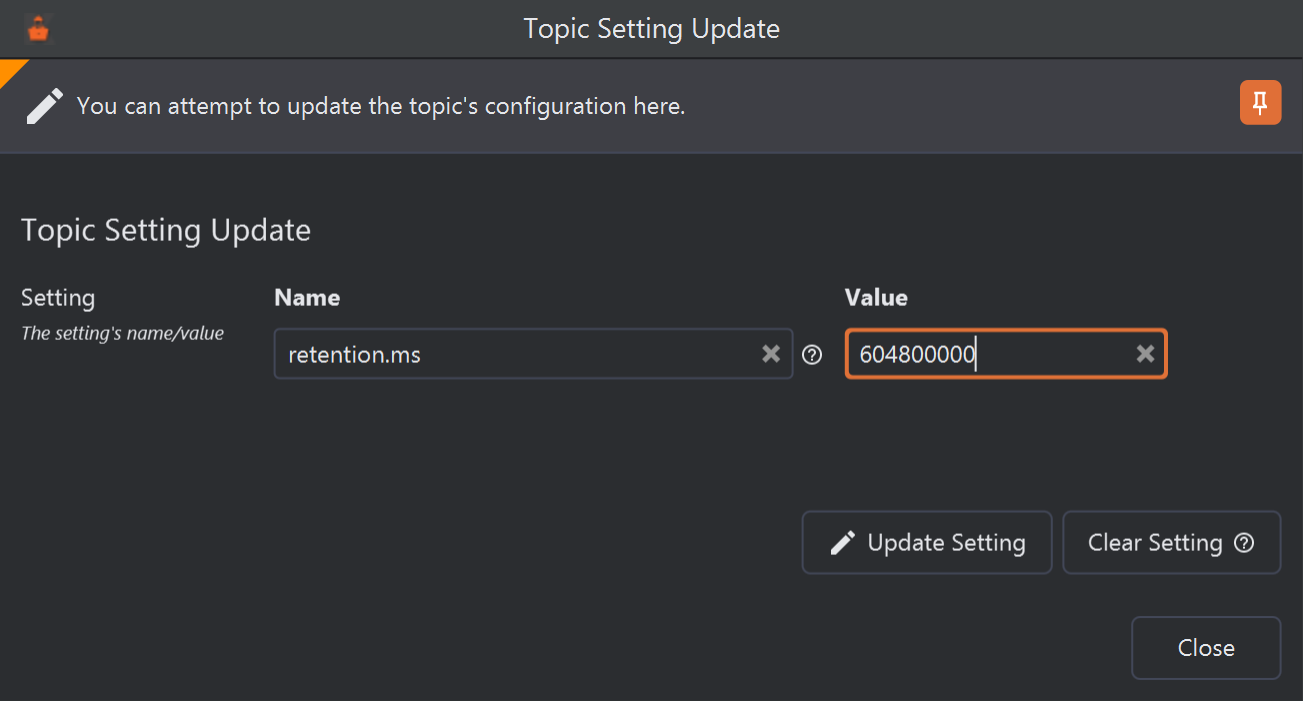
Raising orders' retention from 3 to 7 days.- Name, filled in from the row you clicked. You can type another setting's name here to set that one instead.
- Value: the new value, in the form Kafka expects (for sizes
and times, a plain number of bytes or milliseconds: 7 days is
604800000). - Update Setting sends the new value.
- Clear Setting removes it instead (below).
-
Update and confirm
Click Update Setting and confirm with Yes. When Kafka accepts the change, KafkIO says The setting was updated (Kafka reported no error)., waits a second and refreshes the settings, and the setting's Source becomes
DYNAMIC_TOPIC_CONFIG. The dialog stays open for another change; click Close when you're done.

If Kafka refuses, KafkIO shows Error updating topic settings. with Kafka's reason, for
example Invalid value 3 days for configuration retention.ms: Not a number of type LONG, and nothing
changes. Changing topic settings needs AlterConfigs permission on the topic, and a cluster that
supports incremental config changes (Kafka 2.3 or later).
retention.ms or retention.bytes lets Kafka delete older messages at its next cleanup,
and setting cleanup.policy to compact starts removing all but the latest message per
key. Neither can be undone by changing the value back.To change several settings in one go, or the number of partitions, use Edit Settings in the topic buttons instead (Updating a topic).
Clearing a setting
Clear Setting, in the same dialog, removes the topic's own value after you confirm
(Are you sure you want to clear this topic setting? Kafka will apply a default if
cleared.). The topic then falls back to the next source down in the table above: a broker value if there
is one, otherwise Kafka's default. Clearing min.insync.replicas on orders, for example,
took it from 2 to 1 from DEFAULT_CONFIG.
DYNAMIC_TOPIC_CONFIG. On a value the topic inherits, nothing changes, yet KafkIO still reports that
the setting was updated, because Kafka reports no error. To change an inherited value for this topic only,
update it instead; to change it for every topic, change the broker setting
(Updating dynamic settings).