The Brokers section shows each broker in the cluster: where clients reach it, how many partitions it leads and holds, how much data it stores, and which settings it runs with. Use it to spot a broker that carries more than its share of the load, to check a broker's log directories, and to change a broker's dynamic settings without restarting it.
To open it, connect the cluster and click Brokers under its name in the Kafka Clusters pane.

- The cluster at a glance: how many brokers, which node is the active controller, and the cluster's Kafka version (below).
- Partitions: replication health and the controller type.
- The brokers list, one row per broker (below).
- The ID of the selected broker. Click it to copy it to the clipboard.
- The selected broker's details: Overview, Log Dirs and Settings. They stay greyed out until you select a broker.
- Refresh All Brokers (see Refreshing).
- Undock window: move the detail tabs into a window of their own (Split panes and detail tabs).
- Duplicate Tab: open Brokers in a tab of its own, as was done here for Consumers (Storefront Staging (Consumers)), so you can keep it open while you work elsewhere on the cluster (Duplicating a tab).
The summary cards
The cards describe the whole cluster, as on the Cluster Overview, whose page explains Brokers, Active Controller, Version, URP and In-sync Replicas and what to do when they look wrong. Three cards are only here:
| Card | What it shows |
|---|---|
| Online | online of total partitions: partitions that have a leader, out of all partitions (the Overview calls this card Partitions). |
| Out-of-sync | How many replicas, across all partitions, have fallen behind their leader. It's the difference between
the two numbers on In-sync Replicas, and 0 on a healthy
cluster. |
| Controller Type | KRaft when the cluster manages its metadata with a KRaft controller quorum,
ZooKeeper otherwise, Unknown if KafkIO couldn't tell. Kafka-compatible
services that don't answer KRaft's quorum request (WarpStream, for example) show
ZooKeeper even though they don't use it. |
The brokers list
Each row is a broker. Click a column header to sort by it, and right-click a row for Copy Value, Copy Summary and Copy All Summaries (Copying to the clipboard). Select a row to see that broker's details underneath.

- Disk Usage: how much data the broker stores, and how many partition replicas that is.
- Replicas Skew: how far the broker's replica count is above the cluster average.
- Leaders: how many partitions the broker leads.
- Leaders Skew: how far the broker's leader count is above the cluster average.
- Replicas: how many partition replicas the broker holds.
Columns
| Column | What it shows |
|---|---|
| Broker ID | The broker's node.id (broker.id on ZooKeeper clusters). |
| Disk Usage | The total size of the partition replicas in the broker's log directories, then the number of those
replicas. The count is labelled segments, but it counts partition replicas, not log segment
files, so it normally equals Replicas. N/A when KafkIO
couldn't read the broker's log directories (for example without Describe permission
on the cluster, or on services that don't expose them). |
| Replicas Skew | See Leader skew and replica skew. |
| Leaders | How many partitions this broker is currently the leader of. -1 when unknown. |
| Leaders Skew | See Leader skew and replica skew. |
| Replicas | How many partition replicas the broker holds, leaders and followers together. A topic with 6 partitions and a replication factor of 3 puts 18 replicas on the cluster. |
| Port, Host | The address the broker advertises: what KafkIO and every other client connect to after the first contact through the bootstrap servers. A host your machine can't reach (an internal Docker or Kubernetes name, for instance) explains a cluster that connects but then times out; see Docker and advertised listeners. |
Leaders, replicas, skew and disk usage count every partition KafkIO can see, internal topics included (such as
__consumer_offsets, with its 50 partitions).
Leader skew and replica skew
Every partition has one leader, and producers and consumers talk to the leader. A broker that leads more partitions than the others therefore handles more requests, and is the first to run short of CPU or network. Replicas are about storage and replication traffic: a broker that holds more replicas stores more data and copies more from the leaders. Ideally both are spread evenly. Skew tells you how uneven they are.
KafkIO shows each broker's skew as a percentage above the cluster average (without a % sign): its count, minus the
average count per broker, divided by that average. In the screenshot above, 115 partitions over three brokers
is about 38.3 leaders per broker, so brokers 1 and 3, with 44 leaders each, show a Leaders Skew of
14.8. A value of 0 means exactly average.
N/A in two cases. On a cluster with fewer than 50 partitions in
total, KafkIO doesn't calculate it at all, because averages over so few partitions say little. And a broker
below the average also shows N/A rather than a negative number, like broker 2 above, which
leads only 27 partitions. So on a larger cluster, an N/A next to brokers with positive skew points to
an under-used broker: compare the Leaders and
Replicas counts to see by how much.A few percent of skew is normal. When it's large:
- Leader skew often follows a broker restart: its partitions moved their leadership elsewhere
and haven't moved back. Brokers do this themselves when
auto.leader.rebalance.enableis on (the default, checked every 5 minutes); otherwise, run a preferred leader election with Kafka'skafka-leader-electiontool. - Replica skew comes from where partitions were placed, for example topics created while a
broker was down, or brokers added later. Moving replicas takes a partition reassignment
(
kafka-reassign-partitions, or a tool such as Cruise Control).
KafkIO doesn't move leaders or replicas itself. Bear in mind that skew counts partitions, not bytes or requests: a broker with average counts can still be the busiest if it leads the busiest partitions. The question-mark pop-ups on the two column headers describe skew in terms of messages and data volume, but both figures count partitions.
Broker details: Overview and Log Dirs
Select a broker in the list to fill the tabs underneath. Drag the divider above them to give the tabs more room.
Overview tab

- Overview, the tab that opens first.
- Segment Size: the size of the data the broker stores, as in the Disk Usage column.
- Segment Count: the number of partition replicas in its log directories. Like the count in Disk Usage, this counts replicas, not segment files, whatever its question-mark pop-up says.
- Host: the host name the broker advertises, as in the list.
- Port: the port it advertises.
Log Dirs tab
A broker stores its data in one or more log directories (its log.dirs setting, often one per disk).
The Log Dirs tab lists them, so you can check that every disk is in use and none has
failed.

- Log Dirs, one row per log directory.
- Name: the directory's path on the broker's machine.
- Error: empty while the directory is healthy. If the broker has taken the directory offline (usually a failed or full disk), Kafka's error appears here, and the partitions stored in it are unavailable on this broker.
- Topics: how many topics have at least one partition replica in the directory.
- Partitions: how many partition replicas the directory holds.
For the amount of data, see Segment Size on the Overview tab (the total across all
of the broker's directories). An empty tab means the broker didn't report its log directories, for the same
reasons Disk Usage can show N/A.
Broker settings
The Settings tab lists the selected broker's configuration as the broker reports it: every setting, with its current value and where that value comes from. Brokers can differ, so check the broker you mean (its ID is next to the Brokers title).

- Filter settings...: matches names and values, as plain text or, with the .* toggle on, as a regular expression (Filtering). Here a regular expression picks out a few settings by name.
- Source: where the value comes from (table below).
- Read Only: Yes for settings that can't be changed while the broker runs.
- Search: look the setting up on the web, in your browser.
- Edit: change the setting (below); greyed out for read-only settings.
Reading broker settings
When several sources set the same setting, the one higher in this table wins:
| Source | Meaning |
|---|---|
DYNAMIC_BROKER_CONFIG |
Set at runtime for this broker only, from KafkIO or with
kafka-configs --entity-type brokers --entity-name ID. |
DYNAMIC_DEFAULT_BROKER_CONFIG |
Set at runtime as a default for every broker in the cluster
(kafka-configs --entity-type brokers --entity-default). |
STATIC_BROKER_CONFIG |
From the broker's server.properties file (or the environment variables a container image
turns into it). Changing it means editing the file and restarting the broker. |
DEFAULT_CONFIG |
Nobody set it: Kafka's built-in default. |
Read Only comes from the broker: No means Kafka accepts a
new value at runtime (a dynamic setting), Yes means it only takes effect from
server.properties after a restart. An empty Value means the setting has
no value, or that it's sensitive (passwords, keys): Kafka never sends those to clients.
Right-click a row for Edit, Copy Value,
Copy Summary and Copy All Summaries. If the table says
No broker settings (maybe due to permissions)..., your user isn't allowed to describe
the cluster's configuration (it needs DescribeConfigs on the cluster), or the service doesn't offer
broker settings at all, as with Azure Event Hubs and Amazon MSK Serverless.
Updating dynamic settings
You can change any setting whose Read Only is No, on a running broker, without a restart. The change applies to the selected broker only.
-
Open the setting
Select the broker, open Settings, find the setting and click its pencil in the Edit column (or right-click it and choose Edit). The Broker Setting Update dialog opens.
-
Enter the new value
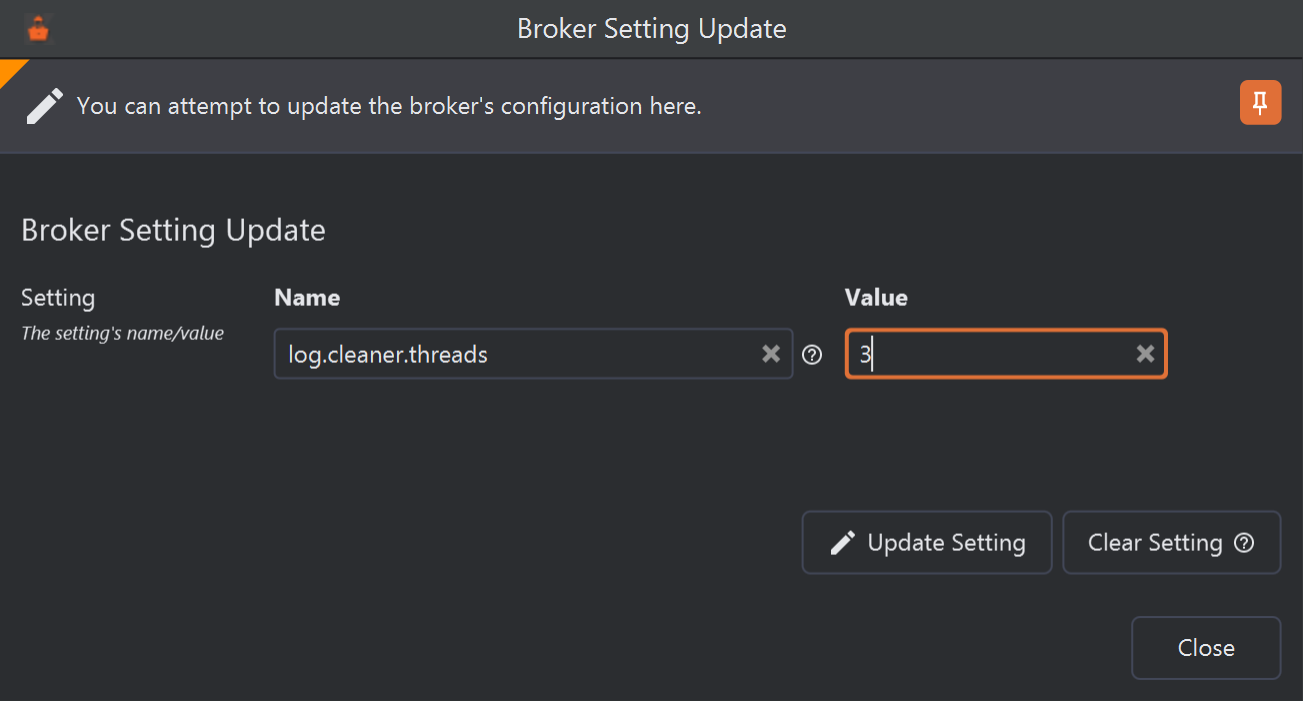
Raising log.cleaner.threadson broker 2.- Name, filled in from the row you clicked. You can type another setting's name here to change that one instead.
- Value: the new value, in the form Kafka expects (for sizes and times, a plain number of bytes or milliseconds).
- Update Setting sends the new value.
- Clear Setting removes it instead (below).
-
Update and confirm
Click Update Setting and confirm with Yes. When the broker accepts the change, KafkIO says The setting was updated (Kafka reported no error)., waits a second and refreshes the brokers, and the setting's Source becomes
DYNAMIC_BROKER_CONFIG. The dialog stays open for another change; click Close when you're done.

If the broker refuses, KafkIO shows Error updating broker settings. with Kafka's
reason, for example Invalid value abc for configuration min.insync.replicas: Not a number of type INT,
and nothing changes. Changing broker settings needs AlterConfigs permission on the cluster.
server.properties. A wrong value for a setting such as message.max.bytes or the
listener and SSL settings affects every client of that broker at once.KafkIO sets a value for one broker at a time. To change a setting for the whole cluster, either update it on every
broker in turn, or set a cluster-wide default with
kafka-configs --bootstrap-server ... --entity-type brokers --entity-default --alter --add-config
        name=value
; KafkIO then shows it as DYNAMIC_DEFAULT_BROKER_CONFIG.
Clearing a setting
Clear Setting, in the same dialog, removes the broker's own value after you confirm
(Are you sure you want to clear this broker setting? Kafka will apply a default if
cleared.). The broker then falls back to the next source down: the cluster-wide dynamic default if there
is one, then server.properties, then Kafka's default. Clearing the log.cleaner.threads
value set above, for example, takes it back to 1 from DEFAULT_CONFIG.
DYNAMIC_BROKER_CONFIG. On any other setting nothing
changes, yet KafkIO still reports that the setting was updated, because Kafka reports no error. To remove a
cluster-wide default, use kafka-configs ... --entity-default --alter --delete-config name.Refreshing
The Brokers section reads the brokers, their log directories and their settings when you open it, and doesn't update by itself after that. Click 6 Refresh All Brokers to read them again (KafkIO also does this after updating or clearing a setting).
The cards, and the leader, replica, skew and disk usage figures in the list, come from the statistics KafkIO collects for each connected cluster every 30 seconds (the same ones behind the Overview), so they can be up to half a minute old even right after a refresh. If the brokers can't be read, KafkIO shows Error retrieving brokers list. with the cause; see Troubleshooting Connections.