Normally KafkIO keeps your clusters, certificates and preferences on the computer it runs on. Memory Stick Mode keeps them in KafkIO's own program folder instead, so a portable copy of KafkIO on a USB stick (or a network share, or a synced folder) carries its configuration with it, from one computer to the next. It's available on Windows and Linux.
What it does and where files go
Memory Stick Mode moves three things into the folder that holds kafkio.jar: the
app folder inside the KafkIO folder on Windows (KafkIO\app), and
lib/app on Linux.
| What | Normally | In Memory Stick Mode |
|---|---|---|
| Your cluster configurations | config/clusters.json in KafkIO's data folder
(where that is) |
clusters.json in the program folder |
| Certificates you added on the Network page | ssl/ct_truststore.jks in KafkIO's data folder |
ct_truststore.jks in the program folder |
| Preferences | Java's preferences store (the registry on Windows,
~/.java/.userPrefs on Linux) |
The preferences store as before, plus a copy in kafkio.xml in the program folder |
Everything else stays on the computer: the logs (Config & Log Files), your saved produce message templates, and any certificate, keystore or Kerberos files your clusters point to, which stay wherever you put them. While the mode is on, the window title ends in memory-stick mode, and Tools ▸ Show Config In opens the program folder.
kafkio.xml is a snapshot of all your preferences, rewritten each time you click
Save in Preferences. When KafkIO starts and finds kafkio.xml in its
program folder, it loads it into that computer's preferences store, so your settings follow you. Things KafkIO
remembers on its own, such as the window size, reach kafkio.xml the next time you save
Preferences.
When it's available
KafkIO must be able to write to its program folder. That's the case for the portable versions (the Windows
ZIP and the Linux archive; see Which file to
download) extracted somewhere you own, such as a USB stick. It isn't for a normal installation in
C:\Program Files or /opt/kafkio: there the button is greyed out. If KafkIO starts and
finds its folder isn't writable (a write-protected stick, for example), it turns the mode off. On macOS the
button isn't shown.
Turning it on
-
Switch the mode in Preferences
Open File ▸ Preferences, click the USB stick button 1 under the page list (it turns orange when on), then Save. Cancel instead and nothing changes.
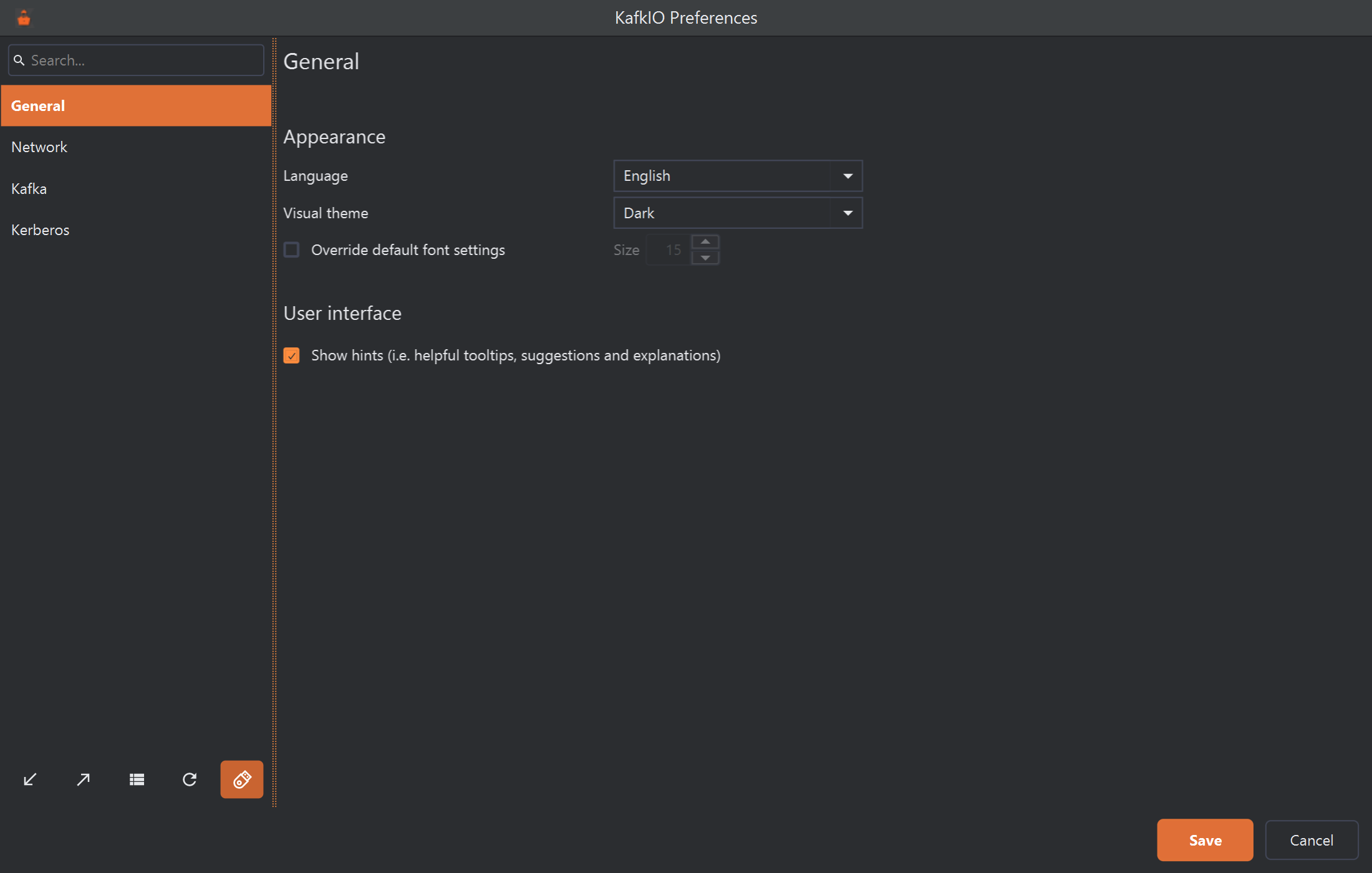
The Memory Stick Mode button, switched on. - Memory Stick Mode. The buttons have no labels; this one's tooltip reads "Memory stick mode stores preferences and configuration in the app folder".
-
Check where the files will go, then continue
A Memory Stick (portable) Mode window shows the folder KafkIO will use from now on 1; Show 2 opens it in your file browser. Click Continue 3.
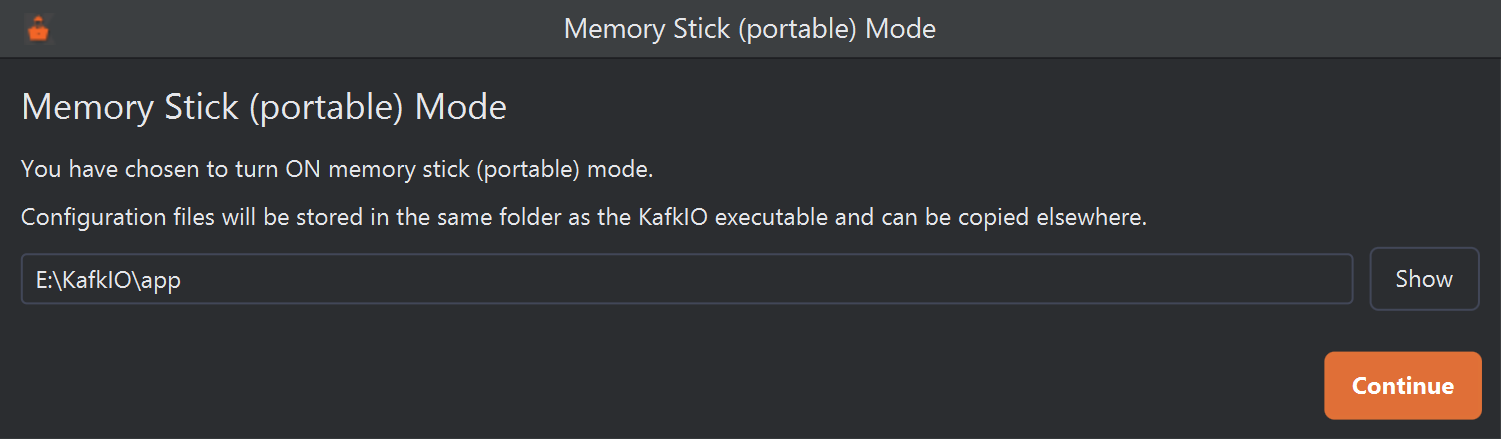
Turning the mode on for a copy of KafkIO extracted to a USB stick (drive E:). - The program folder: the
appfolder next toKafkIO.exe, not the folderKafkIO.exeitself is in, despite the wording above it. - Opens that folder.
- Copies your configuration across and switches over. There's no Cancel here: the switch was saved with Preferences. To undo it, turn the mode off again.
- The program folder: the


On Continue, KafkIO copies your current clusters.json and
ct_truststore.jks into the program folder and writes kafkio.xml there. They're copies:
the originals stay where they were, untouched, and are used again if you turn the mode off later. KafkIO then
reloads your clusters from the new location, which closes any open cluster tabs and disconnects every cluster:
connect again to carry on (Connecting
and disconnecting).
When the folder already has configuration files
If the folder you're switching to already holds a clusters.json or ct_truststore.jks
that differs from yours (say, the stick was already set up on another computer), the window asks before
replacing it, one file at a time. The example in Turning it off shows how this
looks. Leave a file unticked to keep the one already in the folder: KafkIO then uses that one, and the file
you're switching from is left as it is. Tick it to replace it with yours. Identical files, and files that don't
exist on either side, need no decision.
Turning it off
Click the same button in Preferences so it's no longer orange, and Save. The window now shows KafkIO's standard data folder on this computer 1, and KafkIO copies the configuration from the program folder back to it, with the same question for any file that differs.

clusters.json
is newer than the one on this computer.- Where KafkIO keeps its configuration on this computer (
clusters.jsongoes in itsconfigfolder, the truststore inssl). - This box appears only when a file in the destination differs from the one you're switching from.
- Click a file's row to tick it: the file listed first (with its size) replaces the one below it. Unticked, which is the default, keeps the destination's file.
- How many files will be replaced.
- Applies your choices and switches. The file description still says YAML: it's JSON.
Turning the mode off deletes kafkio.xml from the program folder, so another computer won't pick up
your preferences from it. clusters.json (with its backup clusters.json.bak) and
ct_truststore.jks stay there: delete them yourself if the stick leaves your hands.
Running from a USB stick
-
Put a portable KafkIO on the stick
Download the Windows ZIP or the Linux
.tar.gzand extract the whole folder to the stick (Windows, Linux). It includes its own Java runtime, so the computers you use it on need nothing installed. The Windows and Linux downloads are separate builds: to use both systems, put both on the stick, each with its own configuration. -
Start it and turn the mode on
Start KafkIO from the stick and turn Memory Stick Mode on. If you already use KafkIO on this computer, the window copies your existing clusters and certificates onto the stick.
-
Use it anywhere
On another computer, start KafkIO from the stick. It finds
kafkio.xml, turns itself to Memory Stick Mode and opens with your clusters and settings. Changes you make there (a new cluster, an added certificate, saved preferences) are written to the stick.
Things to know before you rely on it:
- Paths don't travel. Clusters refer to truststore, keystore and other files by their full
path, and the Kerberos page does the same for its
krb5file. Keep those files on the stick too, and if the stick gets a different drive letter or mount point on another computer, fix the paths with Edit Cluster (Sharing configurations between machines). - Your preferences stay behind. Loading
kafkio.xmlwrites your preferences into each computer's own preferences store, replacing KafkIO's settings there, and they stay after you unplug the stick. Logs are written on each computer too. - Resetting preferences doesn't stick while the mode is on, because
kafkio.xmlis loaded again at the next start: see Resetting preferences. - Updating means extracting the new version and copying
clusters.json,ct_truststore.jksandkafkio.xmlfrom the oldappfolder into the new one before you delete the old folder.
clusters.json holds your clusters' passwords and keys in plain
text, and kafkio.xml may hold proxy and Kerberos settings. Anyone who finds the stick can read
them. Use an encrypted drive, or keep production credentials off the stick.