The Consumers section lists every consumer group on the cluster: how many members each has, which topics it reads, how far behind it is and what state it's in. Use it to check that your applications are keeping up, to see which member reads which partition, and to move a group's offsets back or forward when it has to re-read or skip messages.
To open it, connect the cluster and click Consumers under its name in the Kafka Clusters pane. To see only the groups that read one topic, use that topic's Consumers tab instead.

order-processor is selected.- Filter consumers...: show only the groups whose ID matches, as plain text or, with the .* toggle on, as a regular expression (Filtering).
- Offsets Tweak: move the selected group's offsets (below).
- Delete Consumer: delete the selected group (below).
- Refresh All Consumers: read every group again.
- The consumer groups list, one row per group (below).
- Refresh this group only.
- The selected group's ID. Click it to copy it to the clipboard.
- The selected group's details: Overview and Subscribed Topics. They stay greyed out until you select a group.
- Undock window: move the detail tabs into a window of their own (Split panes and detail tabs).
- Duplicate Tab: open Consumers in a tab of its own, as was done here for Topics (Storefront Staging (Topics)), so you can keep an eye on lag while you work elsewhere on the cluster (Duplicating a tab).
The consumer groups list
The list shows every consumer group the cluster knows about, running or not: a group stays listed after its consumers stop, for as long as Kafka keeps its committed offsets. Click a column header to sort by it, and select a row to see the group's details underneath. Right-click a row for Refresh, Offsets Tweak, Delete Consumer, Copy Value, Copy Summary and Copy All Summaries (Copying to the clipboard).
Columns
| Column | What it shows |
|---|---|
| Group ID | The group's group.id, as set by the consuming application. |
| Number of Members | How many consumer instances are in the group right now. The broker shares the partitions of the topics
the group reads between them, each partition going to exactly one member. 0 means
nothing is consuming. |
| Number of Topics | How many topics the group has committed offsets for, or has members assigned to. |
| Consumer Lag | How many messages the group is behind, added up over every partition it has committed offsets for, across all its topics (below). N/A when the group has no committed offsets. |
| Coordinator | The ID of the broker that coordinates the group: it tracks the members, assigns partitions to them and stores the group's committed offsets. |
| State | The group's state, coloured (below). |
The ? beside a column header explains it (Column information pop-ups).
Group states
| State | Meaning |
|---|---|
STABLE (green) |
The group has members and every partition is assigned: it's consuming. |
PREPARING_REBALANCE, COMPLETING_REBALANCE |
A member joined or left and the broker is reassigning partitions. Consumption pauses briefly; a group that stays here keeps rebalancing, often because a consumer takes too long between polls. |
EMPTY (amber) |
No members, but the committed offsets are kept: the group carries on from them when a consumer with this group ID starts again. Only an inactive group's offsets can be tweaked. |
DEAD (red) |
No members and no committed offsets: the group is being removed. You see it briefly after deleting a group. |
UNKNOWN (amber) |
The broker reported a state KafkIO doesn't know. |
Understanding consumer lag
For each partition, lag is the partition's end offset (where the next message will be written) minus the group's
committed offset (where the group will carry on reading). Lag 0 means the group has processed
everything written so far. What matters is how it changes over time, so refresh a few times:
- Steady or bouncing around a small number on a
STABLEgroup: it's keeping up. Consumers commit every few seconds, so a busy topic always shows some lag. - Growing on a
STABLEgroup: the consumers can't keep up with the producers. Add members (up to the number of partitions), or find out what slows them down. - Growing on an
EMPTYgroup: nothing is consuming. That's expected for a batch job between runs, and a problem for a service that should be running.
Lag counts offsets, so on compacted topics, or topics written with transactions, it can be a little higher than the number of messages still to read. To see where the lag sits, open the group's Subscribed Topics tab: one partition far behind the rest usually points to a stuck member or a slow key.
Filtering and refreshing
KafkIO reads the groups when you open the section; the list doesn't update by itself. Refresh All Consumers 4 reads them all again (a notification says how many were found), and a row's refresh button 6 or its Refresh menu item reads only that group, which is quicker on a cluster with many groups. Refreshing a topic's Consumers tab also updates this list. The filter 1 matches group IDs only.
Group details
Select a group to fill the lower pane. Drag the divider to give it more room, or undock it 9.
Overview tab
The Overview tab sums the group up in six cards: State,
Members, Assigned Topics,
Assigned Partitions, Coordinator and
Total Lag. They match the list's columns; Assigned
Partitions is the one extra: how many partitions the group has committed offsets for or has assigned to a
member, across all its topics. In the screenshot above, order-processor has no members but still
has offsets for the 6 partitions of orders, 120 messages behind in total.
Subscribed Topics tab
The Subscribed Topics tab lists the topics the group reads, each with its own lag. Expand a topic to see its partitions: which member reads each one, and where the group is in it.

orders.- Filter subscribed topics...: show only matching topics.
- Expand or collapse the topic's partitions.
- Consumer ID: the member that reads the partition. Blank when no
member is assigned to it, as for every partition of an
EMPTYgroup. - Host: where that member connects from.
- Current Offset: the group's committed offset, where it carries on reading.
- End Offset: the offset the next message written to the partition will get.
- Delete Topic Offsets (below).
A group that is behind shows where, partition by partition. Here analytics-export is 300 messages
behind on orders and 100 on payments (400 in the list): it has read partition 1 to the
end and never committed anything on the others.

orders expanded.- The group's lag on each topic.
- The lag on each partition: End Offset 4 minus Current Offset 3.
- Current Offset:
0here, so the group will read these partitions from the start. - End Offset.
Right-click a topic for Offsets Tweak (with that topic already chosen), Delete Topic Offsets, Copy Value, Copy Summary and Copy All Summaries; the partition rows offer the copy items. Partitions a member is assigned to but the group hasn't committed an offset for yet show N/A for their offsets and lag, and don't count towards the group's lag.
Tweaking offsets
A group's committed offsets decide where its consumers carry on reading. Moving them lets a group re-read messages (after fixing a bug in the consumer, say), skip messages it shouldn't process (a backlog of bad data), or start from a point in time. KafkIO only changes the group's committed offsets; the messages themselves stay as they are.
EMPTY (refresh the group if it still shows members).
Kafka won't let anyone change the offsets of a group whose members are consuming, and KafkIO checks first:
otherwise you get Error updating offsets with "Group's offsets can only be tweaked if
the group is inactive, but the group is Stable", and nothing changes.
-
Open the Offsets Tweak dialog
Select the group and click Offsets Tweak in the toolbar, or right-click the group. To tweak one topic, right-click it in the Subscribed Topics tab instead, or right-click the group in the topic's own Consumers tab: the dialog then opens on that topic and won't let you pick another. The button is greyed out for a group with no topics.
-
Choose the topic, tweak type and partitions
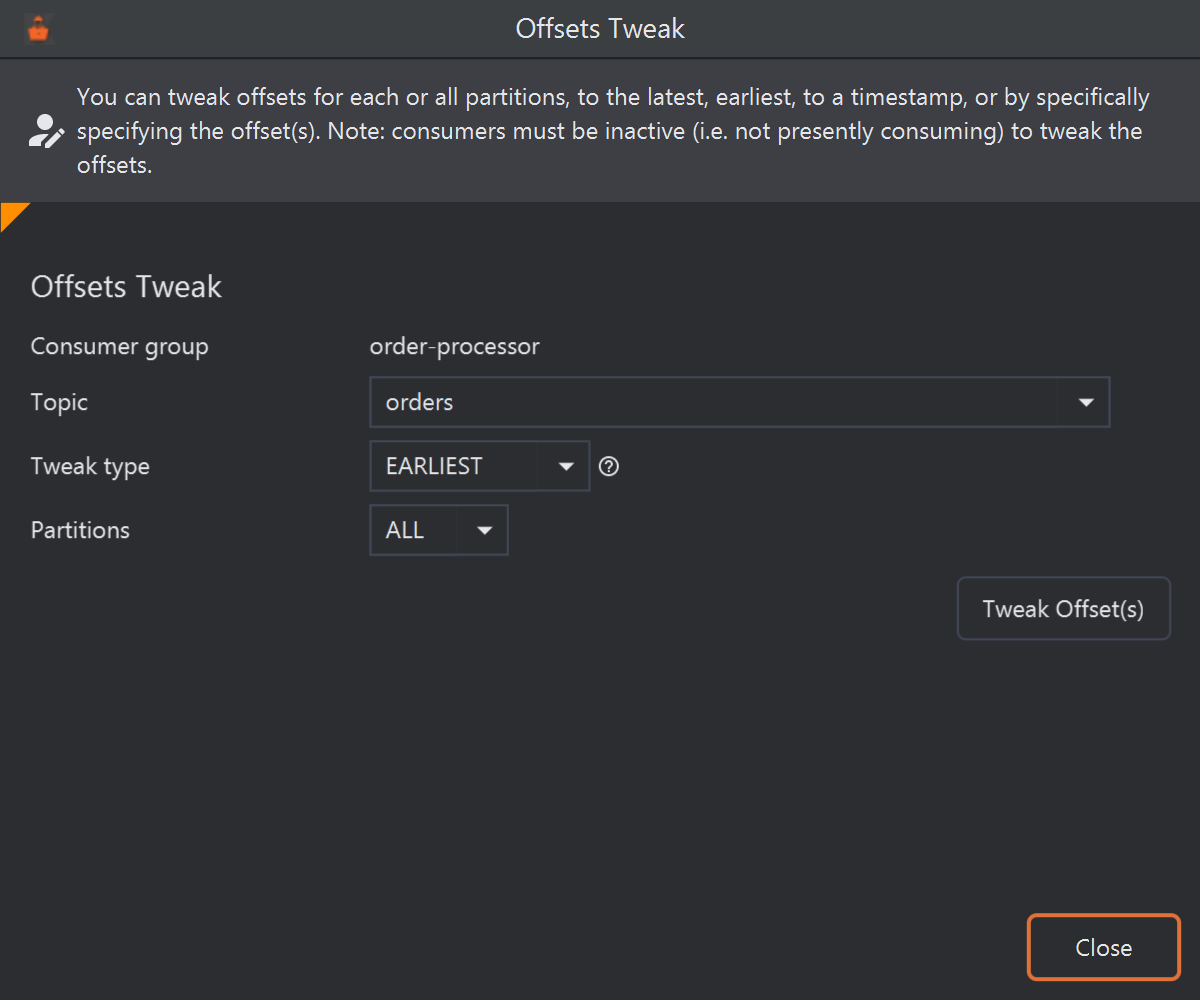
Moving order-processorback to the start oforders.- Topic: one of the topics the group reads. One topic per tweak; repeat for the others.
- Tweak type: where to move the offsets (see the table below).
- Partitions:
ALL, or tick the ones to change. The others keep their offsets. - Tweak Offset(s): apply.
-
Apply
Click Tweak Offset(s). KafkIO confirms with Offsets updated and refreshes the group, so its lag shows where it now stands. The dialog stays open for another tweak; Close it when you're done. When the consumers start again, they read from the new offsets.

Tweak types
| Tweak type | Moves each chosen partition to | Use it to |
|---|---|---|
EARLIEST |
The oldest message still in the partition. | Re-read everything the topic still holds. |
LATEST |
The end of the partition: the group will only read messages written from now on. | Skip a backlog. |
TIMESTAMP |
The first message with a timestamp at or after the date and time you pick. Partitions with no such message go to the end. | Re-read from a point in time, such as just before an incident. |
OFFSET |
An offset you type for each partition. | Re-read or skip exact messages. |
TIMESTAMP adds a Timestamp row: a date and a time to the minute, in your
computer's time zone, starting at the moment the dialog opened.

TIMESTAMP tweak of partitions 1 and 4.- The date (pick it from the calendar) and the time, in hours and minutes.
OFFSET adds one field per partition (every partition with ALL), filled in with the
partition's end offset. The ? beside a field shows the group's current offset and the
end offset as they were when the dialog opened.

OFFSETchosen.- Only partitions 1 and 4 ticked, so only they get a field and only they change.
- The new offset of partition 1.
- The new offset of partition 4.
- Apply.
An offset outside the partition's range is brought into it: below the oldest message it becomes the oldest, past the end it becomes the end offset, without a warning.
Choosing partitions
The Partitions list holds the partitions the group has offsets for or members on. With
nothing ticked it reads ALL, and EARLIEST, LATEST and
TIMESTAMP then set every partition of the topic. Tick partitions to change only those, for example
to move past one bad message on one partition while the others stay where they are.
Deleting a consumer group
Deleting a group removes its committed offsets for every topic it read. Do it to clean up groups that are no longer
used, or to make an application start afresh: the next consumer with that group ID starts where its
auto.offset.reset setting says (the newest messages, by default).
Select the group, click Delete Consumer (or right-click the group) and confirm with
Delete. The group stays in the list as DEAD until you click
Refresh All Consumers.
Deleting a group's offsets for a topic
To make a group forget one topic but keep the others, delete its offsets for that topic: in the
Subscribed Topics tab, click the bin at the end of the topic's row, or
right-click it and choose Delete Topic Offsets, then confirm with
Delete. KafkIO refreshes the group, and the topic disappears from its list. The next
time the group reads that topic, it starts where auto.offset.reset says.
The confirmation message shows the group's name where the topic's should be ("...offsets for topic group?"); the topic whose offsets are deleted is the one you clicked. Kafka refuses while a member of the group is reading the topic (Error deleting consumer offsets: "Deleting offsets of a topic is forbidden while the consumer group is actively subscribed to it"), so stop the consumers first.
Removing a member from a group
KafkIO has no action to remove a single member from a group. A member leaves when its consumer closes, or when the
coordinator stops hearing from it for longer than the consumer's session.timeout.ms; the group then
rebalances and its partitions go to the remaining members. To take a member out, stop or restart that
consumer.